





July 9, 2026
Breakout Room Audio Setup: What You Need to Know
Quick Answer
Breakout room audio setup requires a dedicated microphone, noise-canceling headphones, and proper platform configuration to ensure clear communication in smaller group sessions. Most platforms automatically transfer your main meeting audio settings to breakout rooms, but testing beforehand prevents common issues like echo, audio dropouts, and background noise interference.
Key Takeaways
What Are Breakout Rooms and How Does Audio Work in Them
Breakout rooms are smaller, private meeting spaces within a larger video conference that allow participants to collaborate in focused groups. Audio in breakout rooms operates independently from the main meeting, with each room functioning as a separate audio environment where only assigned participants can hear each other.
When you enter a breakout room, your existing audio settings transfer automatically, but the audio quality depends heavily on your hardware setup and internet connection. Unlike the main meeting where background noise might blend into a larger group, breakout rooms amplify individual audio issues because there are fewer voices to mask problems.
Key differences in breakout room audio:
Choose breakout rooms when you need focused discussion, but ensure your audio setup can handle the increased scrutiny of small group communication.
Best Microphone Options for Breakout Room Meetings
A dedicated USB microphone or quality headset microphone significantly outperforms built-in laptop microphones for breakout room clarity. The Blue Yeti Nano, Audio-Technica ATR2100x-USB, and Samson Q2U provide professional-grade audio capture that eliminates the tinny, distant sound of internal mics.
Top microphone categories for breakout rooms:
USB Condenser Microphones ($50-150)
Dynamic USB Microphones ($80-200)
Headset Microphones ($30-120)
Position any microphone 6-8 inches from your mouth and slightly off to the side to avoid breathing sounds. Test different distances during your setup to find the sweet spot for your voice and speaking style.
Why Audio Cuts Out in Breakout Rooms and How to Fix It
Audio dropouts in breakout rooms typically result from insufficient bandwidth, outdated platform software, or conflicting audio drivers on your computer. These issues become more apparent in breakout rooms because the smaller group size makes every interruption noticeable and disruptive to conversation flow.
Common causes and solutions:
Bandwidth Issues
Software Conflicts
Hardware Problems
Keep phone dial-in numbers handy as a backup option. Most platforms provide these numbers in meeting invitations, allowing you to maintain audio participation even when computer audio fails completely.
How to Test Audio Before Joining Breakout Rooms
Testing your audio setup in the main meeting prevents technical delays when breakout rooms begin, since most platforms don't allow audio testing once you're assigned to a smaller group. Spend 2-3 minutes before breakout sessions start to verify your microphone levels, speaker output, and background noise suppression.
Pre-breakout testing checklist:
Microphone Testing
Speaker/Headphone Testing
Platform-Specific Features
Most platforms offer audio test features in their settings menus. Use these built-in tools rather than relying solely on feedback from other participants, as they provide objective measurements of your audio quality.
For professional event production and AV technician support, experienced teams can help optimize your audio setup for flawless breakout room performance.
Platform-Specific Breakout Room Audio Setup
Each major video conferencing platform handles breakout room audio differently, requiring specific setup approaches for optimal performance. Understanding these differences helps you prepare the right settings and troubleshoot issues quickly when they arise during meetings.
Zoom Breakout Room Audio
Microsoft Teams Breakout Room Audio
Google Meet Breakout Room Audio
Best Practices Across All Platforms:
Do You Need Separate Equipment for Each Breakout Room
You don't need different microphones or headphones for each breakout room - your audio equipment works consistently across all breakout sessions within the same meeting platform. However, you may want to adjust microphone sensitivity or headphone volume based on the size and purpose of different breakout groups.
Equipment considerations for multiple breakout sessions:
Microphone Settings
Headphone Adjustments
Software Optimization
The key is having reliable, comfortable equipment that performs consistently rather than multiple devices for different scenarios. Quality headphones and a good microphone serve you well regardless of breakout room size or purpose.
How to Fix Echo and Feedback in Breakout Rooms
Echo and feedback in breakout rooms occur when your microphone picks up audio from your speakers, creating a loop that disrupts conversation for all participants. This problem becomes more noticeable in smaller breakout groups where individual audio issues can't hide among multiple voices.
Immediate Solutions
Platform-Based Fixes
Hardware Adjustments
Advanced Troubleshooting
If echo persists, ask other breakout room participants if they're experiencing similar issues, as the problem might originate from someone else's setup rather than yours.
Wireless vs Wired Audio Equipment for Breakout Rooms
Wired audio equipment provides more reliable performance for breakout rooms due to consistent power delivery and elimination of wireless interference, but wireless options offer greater comfort and mobility during long meeting days. Your choice depends on meeting duration, movement requirements, and backup availability.
Wired Equipment Advantages
Wireless Equipment Benefits
Reliability Considerations
Best Practices for Each Option
For Wired Setup:
For Wireless Setup:
Consider hybrid approaches: wireless headphones with wired backup, or wired microphone with wireless headphones for optimal reliability and comfort.
Audio Setup for Large Group Breakout Meetings
Large breakout room meetings (8+ participants) require different audio considerations than smaller discussion groups, as multiple voices, potential interruptions, and varied audio quality create more complex sound management challenges. Your setup should prioritize clarity and noise reduction to cut through the increased audio complexity.
Microphone Requirements for Large Groups
Headphone Considerations
Platform Optimization
Communication Protocols
Large breakout rooms benefit from more structured communication protocols than intimate discussion groups, as audio clarity becomes more challenging with increased participation.
Can Everyone Hear Each Other in Breakout Rooms
Participants in breakout rooms can only hear others assigned to their specific room - they cannot hear conversations in other breakout rooms or the main meeting while in their assigned space. This audio isolation ensures private discussions but requires understanding of how to communicate with people outside your current room.
Audio Boundaries in Breakout Rooms
Communication Options Outside Your Room
Host Audio Capabilities
Privacy and Security Considerations
Understanding these audio boundaries helps you plan communication strategies and ensures you use appropriate channels for different types of meeting interaction.
Budget-Friendly Audio Setup for Breakout Rooms
An effective breakout room audio setup can be assembled for under $100 using carefully selected equipment that prioritizes essential features over premium options. Focus on reliable microphone quality and comfortable headphones rather than expensive features you won't use regularly.
Essential Budget Setup ($60-80)
Improved Budget Setup ($80-120)
Money-Saving Strategies
Features to Prioritize on Budget
Features to Skip Initially
A modest investment in dedicated audio equipment dramatically improves your breakout room experience compared to built-in laptop audio, even when choosing budget-friendly options.
Troubleshooting Laptop Audio Issues in Breakout Rooms
Laptop audio problems in breakout rooms often stem from driver conflicts, power management settings, or hardware limitations that become apparent during intensive video conferencing use. These issues require systematic troubleshooting to identify whether problems originate from software, hardware, or platform-specific configurations.
Common Laptop Audio Problems
Software Troubleshooting Steps
Hardware Optimization
Platform-Specific Fixes
Power Management Solutions
For complex audio issues, professional AV labor staffing services can provide technical support and equipment recommendations for reliable meeting performance.
Speakers vs Headphones for Breakout Room Participation
Headphones provide superior performance for breakout room participation compared to speakers because they eliminate echo, reduce background noise pickup, and create a more focused audio environment for small group discussions. Speakers work better for casual listening but create technical challenges in interactive meeting environments.
Why Headphones Excel in Breakout Rooms
When Speakers Might Work
Headphone Selection Criteria
Speaker Setup Requirements (If Necessary)
Hybrid Approaches
The small group nature of breakout rooms makes individual audio quality much more important than in large meetings, making headphones the safer choice for professional participation.
How to Reduce Background Noise in Breakout Rooms
Background noise becomes more problematic in breakout rooms because smaller groups make individual audio issues more noticeable and disruptive to focused discussions. Effective noise reduction combines hardware solutions, software settings, and environmental modifications to create clear communication channels.
Software-Based Noise Reduction
Hardware Solutions
Environmental Modifications
Communication Strategies
Advanced Techniques
Consistent noise reduction practices improve not just your audio quality but the overall effectiveness of breakout room discussions by maintaining clear communication channels.
Frequently Asked Questions
Do breakout rooms use the same audio settings as the main meeting?
Yes, breakout rooms automatically inherit your audio settings from the main meeting, including microphone selection, volume levels, and noise suppression features. However, you may need to readjust volume or sensitivity based on the smaller group size and different conversation dynamics.
Can I test my audio while already in a breakout room?
Most platforms don't offer built-in audio testing once you're in a breakout room. Test your audio in the main meeting before breakout sessions begin, or ask other participants in your breakout room to confirm your audio quality when you first join.
What happens to my audio if I get disconnected from a breakout room?
If you're disconnected from a breakout room, you'll typically return to the main meeting (if it's still active) or be dropped from the meeting entirely. Your audio settings remain the same, but you may need to rejoin the breakout room through the host or platform interface.
Can the meeting host hear conversations in breakout rooms?
Meeting hosts can join any breakout room and listen to conversations, but they cannot monitor all rooms simultaneously unless they move between them. Some platforms offer limited broadcast capabilities for hosts to send messages to all breakout rooms at once.
Why does my wireless headset keep disconnecting during breakout rooms?
Wireless disconnections often result from low battery, interference from other devices, or power management settings on your computer. Keep your headset charged, move closer to your device, and disable USB power saving features in your computer's device manager.
Should I use the same microphone for large and small breakout rooms?
The same microphone works for different breakout room sizes, but you may want to adjust sensitivity settings. Use lower sensitivity for smaller, quieter groups to avoid picking up keyboard noise, and slightly higher sensitivity for larger groups where you need to project your voice more clearly.
Can other breakout room participants hear my background noise even when I'm muted?
No, when properly muted through your video conferencing platform, other participants cannot hear any audio from your microphone, including background noise. However, some platforms have "push-to-talk" features that might accidentally unmute you, so verify your mute status regularly.
What's the best way to switch audio devices during a breakout room session?
Most platforms allow you to change audio devices through settings menus even while in breakout rooms, but this may cause temporary audio disruption. It's better to set up your preferred audio devices before joining breakout rooms to avoid interrupting group discussions.
Do I need different audio equipment for different video conferencing platforms?
Standard USB microphones and headphones work across all major platforms (Zoom, Teams, Google Meet). However, some platforms have specific features or optimizations that work better with certain equipment, so test your setup with your most commonly used platform.
How can I improve audio quality if other breakout room participants sound unclear?
You can't directly control other participants' audio quality, but you can adjust your headphone volume, enable noise suppression features on your end, and politely suggest that participants with poor audio quality check their microphone positioning or mute when not speaking.
Is it better to join breakout rooms from a phone or computer for audio quality?
Computer audio typically provides better quality due to superior processing power and the ability to use dedicated USB microphones and headphones. Phone audio works as a backup option, but built-in phone microphones and speakers are generally inferior to computer-based audio setups.
Can I record audio in breakout rooms?
Recording capabilities in breakout rooms depend on the platform and host permissions. Many platforms don't allow individual participants to record breakout rooms, but hosts may have recording options. Check with your meeting organizer about recording policies and capabilities before the session begins.
Conclusion
Successful breakout room audio setup centers on three key elements: quality hardware, proper platform configuration, and environmental optimization. A dedicated USB microphone and comfortable headphones provide the foundation for clear communication, while platform-specific settings and noise reduction techniques ensure your voice comes through clearly in smaller group discussions.
The investment in proper audio equipment pays dividends in professional credibility and meeting effectiveness. Whether you choose budget-friendly options under $100 or invest in higher-end equipment, the key is consistent performance that allows you to focus on collaboration rather than technical issues.
Test your setup before important meetings, keep backup options available, and remember that breakout rooms amplify individual audio problems that might go unnoticed in larger meetings. With the right preparation and equipment, breakout room discussions become more engaging and productive for all participants.
Need Professional AV Support for Your Next Event?
Whether you're planning corporate meetings, conferences, or large-scale events requiring professional audio visual support, AV Labor Source provides experienced technicians and comprehensive event production services. Our skilled team ensures flawless audio setup and technical support for events of any size. Contact us today to discuss your AV staffing and equipment needs.
Breakout room audio setup requires a dedicated microphone, noise-canceling headphones, and proper platform configuration to ensure clear communication in smaller group sessions. Most platforms automatically transfer your main meeting audio settings to breakout rooms, but testing beforehand prevents common issues like echo, audio dropouts, and background noise interference.
Key Takeaways
- Use a dedicated USB microphone or headset microphone for clearer audio than built-in laptop mics
- Test your audio setup in the main meeting before joining breakout rooms to avoid technical delays
- Choose noise-canceling headphones over speakers to prevent echo and feedback in small group settings
- Each platform (Zoom, Teams, Google Meet) handles breakout room audio differently - learn your platform's specific features
- Position your microphone 6-8 inches from your mouth and use push-to-talk when background noise is unavoidable
- Wired connections typically provide more stable audio than wireless options for extended meetings
- Enable noise suppression features in your platform settings before entering breakout rooms
- Have backup audio options ready, including phone dial-in numbers for critical meetings
What Are Breakout Rooms and How Does Audio Work in Them
Breakout rooms are smaller, private meeting spaces within a larger video conference that allow participants to collaborate in focused groups. Audio in breakout rooms operates independently from the main meeting, with each room functioning as a separate audio environment where only assigned participants can hear each other.
When you enter a breakout room, your existing audio settings transfer automatically, but the audio quality depends heavily on your hardware setup and internet connection. Unlike the main meeting where background noise might blend into a larger group, breakout rooms amplify individual audio issues because there are fewer voices to mask problems.
Key differences in breakout room audio:
- Smaller participant count makes individual audio quality more noticeable
- Less ambient sound means background noise becomes more prominent
- Direct communication requires clearer speech and better microphone positioning
- Technical issues affect the entire small group rather than just one person in a crowd
Choose breakout rooms when you need focused discussion, but ensure your audio setup can handle the increased scrutiny of small group communication.
Best Microphone Options for Breakout Room Meetings
A dedicated USB microphone or quality headset microphone significantly outperforms built-in laptop microphones for breakout room clarity. The Blue Yeti Nano, Audio-Technica ATR2100x-USB, and Samson Q2U provide professional-grade audio capture that eliminates the tinny, distant sound of internal mics.
Top microphone categories for breakout rooms:
USB Condenser Microphones ($50-150)
- Capture clear voice with minimal background noise
- Plug-and-play compatibility with most platforms
- Adjustable gain controls for different speaking volumes
- Best for quiet, controlled environments
Dynamic USB Microphones ($80-200)
- Reject background noise better than condenser mics
- Handle louder speaking volumes without distortion
- More forgiving of poor room acoustics
- Ideal for home offices with ambient noise
Headset Microphones ($30-120)
- Consistent microphone positioning near your mouth
- Integrated headphones eliminate echo concerns
- Portable for different meeting locations
- Good balance of quality and convenience
Position any microphone 6-8 inches from your mouth and slightly off to the side to avoid breathing sounds. Test different distances during your setup to find the sweet spot for your voice and speaking style.
Why Audio Cuts Out in Breakout Rooms and How to Fix It
Audio dropouts in breakout rooms typically result from insufficient bandwidth, outdated platform software, or conflicting audio drivers on your computer. These issues become more apparent in breakout rooms because the smaller group size makes every interruption noticeable and disruptive to conversation flow.
Common causes and solutions:
Bandwidth Issues
- Close unnecessary applications consuming internet bandwidth
- Switch from Wi-Fi to wired ethernet connection when possible
- Lower video quality settings to prioritize audio transmission
- Ask other household members to pause streaming during important meetings
Software Conflicts
- Update your video conferencing platform to the latest version
- Restart the application before joining breakout rooms
- Disable other audio applications running in the background
- Check for conflicting virtual audio drivers from other software
Hardware Problems
- Replace USB cables connecting your microphone or headset
- Try different USB ports, preferably USB 3.0 for better power delivery
- Update audio drivers through Device Manager or manufacturer websites
- Test with backup audio devices to isolate hardware failures
Keep phone dial-in numbers handy as a backup option. Most platforms provide these numbers in meeting invitations, allowing you to maintain audio participation even when computer audio fails completely.
How to Test Audio Before Joining Breakout Rooms
Testing your audio setup in the main meeting prevents technical delays when breakout rooms begin, since most platforms don't allow audio testing once you're assigned to a smaller group. Spend 2-3 minutes before breakout sessions start to verify your microphone levels, speaker output, and background noise suppression.
Pre-breakout testing checklist:
Microphone Testing
- Speak at normal conversation volume and watch input level meters
- Ask other participants if your audio sounds clear and at appropriate volume
- Test mute/unmute functionality to ensure smooth operation during discussions
- Verify push-to-talk settings if you prefer that communication method
Speaker/Headphone Testing
- Listen to other participants to confirm you can hear clearly
- Adjust volume to comfortable levels that won't cause fatigue
- Test platform audio controls like individual participant volume adjustment
- Ensure no echo or feedback when others speak
Platform-Specific Features
- Enable noise suppression or noise cancellation features
- Test virtual background effects that might impact audio processing
- Verify recording permissions if breakout sessions will be documented
- Check screen sharing audio settings if you'll present content with sound
Most platforms offer audio test features in their settings menus. Use these built-in tools rather than relying solely on feedback from other participants, as they provide objective measurements of your audio quality.
For professional event production and AV technician support, experienced teams can help optimize your audio setup for flawless breakout room performance.
Platform-Specific Breakout Room Audio Setup
Each major video conferencing platform handles breakout room audio differently, requiring specific setup approaches for optimal performance. Understanding these differences helps you prepare the right settings and troubleshoot issues quickly when they arise during meetings.
Zoom Breakout Room Audio
- Audio settings transfer automatically from main room to breakout rooms
- Host can enable "Allow participants to return to main room at any time"
- Participants can request help from host, which sends audio notification
- Background noise suppression works consistently across room transitions
- Recording capabilities depend on host permissions set before breakout creation
Microsoft Teams Breakout Room Audio
- Requires Teams desktop app for full audio functionality (web version has limitations)
- Audio quality depends on your Teams audio device settings in main meeting
- Push-to-talk settings carry over but may need re-enabling after room switches
- Live captions and transcription available if enabled by meeting organizer
- Screen sharing with audio requires specific permissions set by room creator
Google Meet Breakout Room Audio
- Audio settings sync from main meeting but may require manual adjustment
- Limited to 100 participants total across all breakout rooms
- No direct help request feature - participants must return to main room for assistance
- Background blur and noise cancellation settings persist across room changes
- Mobile app users may experience different audio quality than desktop participants
Best Practices Across All Platforms:
- Join meetings 5 minutes early to test audio before breakout assignments
- Keep backup communication methods ready (phone, chat, email)
- Designate one person per breakout room as technical point of contact
- Document platform-specific shortcuts for mute, video, and help functions
Do You Need Separate Equipment for Each Breakout Room
You don't need different microphones or headphones for each breakout room - your audio equipment works consistently across all breakout sessions within the same meeting platform. However, you may want to adjust microphone sensitivity or headphone volume based on the size and purpose of different breakout groups.
Equipment considerations for multiple breakout sessions:
Microphone Settings
- Lower gain for smaller, quieter breakout groups to avoid picking up keyboard noise
- Increase sensitivity for larger breakout rooms where you need to project more
- Use push-to-talk in rooms with frequent interruptions or cross-talk
- Keep consistent positioning to maintain audio quality across room switches
Headphone Adjustments
- Higher volume may be needed in larger breakout groups with more ambient conversation
- Lower volume works better for intimate discussion groups to avoid fatigue
- Consider open-back headphones for all-day comfort during multiple breakout sessions
- Keep backup earbuds available for comfort breaks during long meeting days
Software Optimization
- Save different audio profiles in your platform settings for quick switching
- Test audio levels when first entering each new breakout room assignment
- Monitor battery levels on wireless devices if switching between multiple sessions
- Keep charging cables accessible for extended meeting days with multiple breakouts
The key is having reliable, comfortable equipment that performs consistently rather than multiple devices for different scenarios. Quality headphones and a good microphone serve you well regardless of breakout room size or purpose.
How to Fix Echo and Feedback in Breakout Rooms
Echo and feedback in breakout rooms occur when your microphone picks up audio from your speakers, creating a loop that disrupts conversation for all participants. This problem becomes more noticeable in smaller breakout groups where individual audio issues can't hide among multiple voices.
Immediate Solutions
- Switch from speakers to headphones to physically separate audio input and output
- Mute your microphone when not actively speaking to break the feedback loop
- Move your microphone farther from your speakers if headphones aren't available
- Lower your speaker volume to reduce the audio signal reaching your microphone
Platform-Based Fixes
- Enable echo cancellation in your video conferencing software settings
- Turn on noise suppression features that can help reduce feedback
- Adjust microphone sensitivity to pick up only your voice, not ambient room sound
- Test different audio input/output device combinations in platform settings
Hardware Adjustments
- Position your microphone closer to your mouth and farther from speakers
- Use directional (cardioid) microphones that focus on sound from one direction
- Add soft furnishings to your room to reduce sound reflection off hard surfaces
- Consider acoustic panels or blankets to dampen room reverberation
Advanced Troubleshooting
- Update audio drivers to ensure compatibility with your conferencing platform
- Check for conflicting audio software that might interfere with echo cancellation
- Test with different USB ports if using USB microphones or headsets
- Restart your computer and conferencing software to clear audio processing conflicts
If echo persists, ask other breakout room participants if they're experiencing similar issues, as the problem might originate from someone else's setup rather than yours.
Wireless vs Wired Audio Equipment for Breakout Rooms
Wired audio equipment provides more reliable performance for breakout rooms due to consistent power delivery and elimination of wireless interference, but wireless options offer greater comfort and mobility during long meeting days. Your choice depends on meeting duration, movement requirements, and backup availability.
Wired Equipment Advantages
- No battery concerns during extended breakout sessions
- Consistent audio quality without wireless signal drops
- Lower latency for real-time conversation flow
- Generally less expensive than comparable wireless options
- Works immediately without pairing or connection setup
Wireless Equipment Benefits
- Freedom to move around your workspace during discussions
- No cable management or tangling issues
- More comfortable for all-day wear during multiple breakout sessions
- Professional appearance on video without visible cables
- Easier to switch between devices if joining from different locations
Reliability Considerations
- Wired connections rarely fail mid-meeting
- Wireless devices can disconnect due to interference from other devices
- Battery life varies significantly between wireless headphone models
- Bluetooth connections may introduce slight audio delay
- USB wireless receivers typically more stable than Bluetooth connections
Best Practices for Each Option
For Wired Setup:
- Keep cable length appropriate to avoid tension or disconnection
- Use USB extension cables if needed to reduce strain on device ports
- Choose headsets with inline controls for quick mute/volume adjustment
- Have backup cables available for critical meetings
For Wireless Setup:
- Charge devices fully before important meetings
- Keep charging cables accessible during long meeting days
- Pair backup wired headphones as emergency option
- Test connection stability in your specific workspace environment
Consider hybrid approaches: wireless headphones with wired backup, or wired microphone with wireless headphones for optimal reliability and comfort.
Audio Setup for Large Group Breakout Meetings
Large breakout room meetings (8+ participants) require different audio considerations than smaller discussion groups, as multiple voices, potential interruptions, and varied audio quality create more complex sound management challenges. Your setup should prioritize clarity and noise reduction to cut through the increased audio complexity.
Microphone Requirements for Large Groups
- Use directional microphones to focus on your voice and reduce pickup of other participants
- Increase microphone sensitivity slightly to ensure your voice projects clearly
- Position microphone closer to your mouth (4-6 inches) for better signal-to-noise ratio
- Enable push-to-talk functionality to reduce background noise when you're not speaking
Headphone Considerations
- Choose closed-back headphones to better isolate individual voices from group chatter
- Increase volume moderately to distinguish speakers in busier audio environments
- Use headphones with good frequency response to hear both male and female voices clearly
- Consider noise-canceling features to focus on meeting audio rather than room ambient sound
Platform Optimization
- Enable participant name display when speaking to track who's talking in larger groups
- Use raise hand features instead of interrupting to manage speaking order
- Activate noise suppression at higher levels to filter out multiple background sources
- Consider breakout room time limits to maintain engagement and audio quality
Communication Protocols
- Establish speaking order or moderation to prevent audio conflicts
- Use visual cues (hand raising, chat) to supplement audio communication
- Designate one person to manage technical issues for the group
- Plan shorter speaking turns to accommodate more participants
Large breakout rooms benefit from more structured communication protocols than intimate discussion groups, as audio clarity becomes more challenging with increased participation.
Can Everyone Hear Each Other in Breakout Rooms
Participants in breakout rooms can only hear others assigned to their specific room - they cannot hear conversations in other breakout rooms or the main meeting while in their assigned space. This audio isolation ensures private discussions but requires understanding of how to communicate with people outside your current room.
Audio Boundaries in Breakout Rooms
- Each breakout room functions as a completely separate audio environment
- Conversations remain private within each assigned group
- Main meeting audio is inaccessible while in breakout rooms
- Other breakout rooms cannot be heard or accessed without host reassignment
Communication Options Outside Your Room
- Return to main meeting (if permitted) to speak with host or other participants
- Use platform chat features to send messages to specific individuals or all participants
- Request help from meeting host through platform-specific help functions
- Use external communication methods (phone, email, separate messaging apps) if needed
Host Audio Capabilities
- Meeting hosts can join any breakout room and hear those conversations
- Hosts can broadcast messages to all breakout rooms simultaneously
- Some platforms allow hosts to monitor multiple rooms through audio switching
- Hosts control participant movement between rooms and back to main meeting
Privacy and Security Considerations
- Breakout room conversations are typically not recorded unless specifically enabled
- Participants cannot accidentally broadcast to wrong rooms due to platform audio isolation
- Side conversations remain private from main meeting participants
- Host permissions determine level of oversight and room access control
Understanding these audio boundaries helps you plan communication strategies and ensures you use appropriate channels for different types of meeting interaction.
Budget-Friendly Audio Setup for Breakout Rooms
An effective breakout room audio setup can be assembled for under $100 using carefully selected equipment that prioritizes essential features over premium options. Focus on reliable microphone quality and comfortable headphones rather than expensive features you won't use regularly.
Essential Budget Setup ($60-80)
- Microphone: Samson Go Mic ($40) - USB plug-and-play with good voice clarity
- Headphones: Audio-Technica ATH-M20x ($49) - comfortable closed-back design
- Alternative: All-in-one headset like Logitech H390 ($25) for maximum simplicity
Improved Budget Setup ($80-120)
- Microphone: Audio-Technica ATR2100x-USB ($79) - professional quality with multiple connection options
- Headphones: Sony MDR-7506 ($100) - industry standard for clear voice reproduction
- Cables: Quality USB extension cable ($10) for flexible microphone positioning
Money-Saving Strategies
- Buy refurbished or open-box audio equipment from reputable retailers
- Check if your employer offers equipment reimbursement for remote work setups
- Start with a quality headset and upgrade to separate microphone/headphone setup later
- Look for bundle deals that include both microphone and headphones
Features to Prioritize on Budget
- USB connectivity for simple setup without additional interfaces
- Comfortable headphone design for extended wear during long meetings
- Microphone mute button for quick audio control
- Standard 3.5mm backup connectivity options
Features to Skip Initially
- Advanced audio processing or effects
- Wireless connectivity (adds cost and potential reliability issues)
- Professional studio features like multiple pickup patterns
- Expensive acoustic treatment for your room
A modest investment in dedicated audio equipment dramatically improves your breakout room experience compared to built-in laptop audio, even when choosing budget-friendly options.
Troubleshooting Laptop Audio Issues in Breakout Rooms
Laptop audio problems in breakout rooms often stem from driver conflicts, power management settings, or hardware limitations that become apparent during intensive video conferencing use. These issues require systematic troubleshooting to identify whether problems originate from software, hardware, or platform-specific configurations.
Common Laptop Audio Problems
- Microphone cutting in and out during longer breakout sessions
- Audio quality degrading after switching between breakout rooms
- Built-in speakers creating echo or feedback in small group settings
- USB audio devices not being recognized after sleep/wake cycles
Software Troubleshooting Steps
- Update audio drivers through Device Manager or manufacturer websites
- Disable audio enhancements in Windows Sound settings that can cause conflicts
- Set your conferencing platform as high priority in Task Manager
- Close unnecessary applications that might compete for audio resources
- Restart audio services through Windows Services management console
Hardware Optimization
- Connect USB audio devices to USB 3.0 ports for better power delivery
- Use powered USB hubs if multiple audio devices cause power issues
- Clean headphone jacks and USB ports to ensure solid connections
- Test with different USB cables to eliminate cable-related problems
- Monitor laptop temperature, as overheating can affect audio processing
Platform-Specific Fixes
- Clear cache and temporary files for your video conferencing software
- Reset audio settings to defaults within the platform
- Test audio in platform's built-in test features before joining breakout rooms
- Disable automatic gain control if it's causing volume fluctuations
- Switch between different audio codecs if options are available
Power Management Solutions
- Prevent USB ports from powering down in Device Manager power settings
- Disable selective suspend for USB devices in Power Options
- Keep laptop plugged in during important meetings to maintain consistent performance
- Adjust processor power management to prevent CPU throttling during audio processing
For complex audio issues, professional AV labor staffing services can provide technical support and equipment recommendations for reliable meeting performance.
Speakers vs Headphones for Breakout Room Participation
Headphones provide superior performance for breakout room participation compared to speakers because they eliminate echo, reduce background noise pickup, and create a more focused audio environment for small group discussions. Speakers work better for casual listening but create technical challenges in interactive meeting environments.
Why Headphones Excel in Breakout Rooms
- Prevent your microphone from picking up other participants' voices and creating echo
- Block external distractions and help you focus on breakout room conversations
- Allow you to hear subtle audio cues like breathing or background sounds that indicate when someone wants to speak
- Provide consistent volume levels regardless of your room acoustics or ambient noise
When Speakers Might Work
- Single-participant breakout rooms where echo isn't a concern
- Rooms with excellent acoustic treatment that minimizes sound reflection
- Situations where you need to hear both meeting audio and immediate physical environment
- Short breakout sessions where comfort isn't a primary concern
Headphone Selection Criteria
- Closed-back designs isolate you from room noise and prevent audio leakage
- Comfortable padding for extended wear during long meeting days
- Inline controls for quick volume and mute adjustments during discussions
- Good frequency response to clearly distinguish different voices in group conversations
Speaker Setup Requirements (If Necessary)
- Position speakers away from your microphone to minimize feedback
- Use directional speakers that focus sound toward your listening position
- Keep volume low enough that your microphone doesn't pick up the audio
- Add acoustic treatment to reduce sound reflection in your room
- Enable platform echo cancellation features and test thoroughly
Hybrid Approaches
- Use headphones during active discussion periods and speakers during presentation segments
- Switch to speakers when taking notes or multitasking, but mute your microphone
- Keep both options available and switch based on breakout room size and activity type
The small group nature of breakout rooms makes individual audio quality much more important than in large meetings, making headphones the safer choice for professional participation.
How to Reduce Background Noise in Breakout Rooms
Background noise becomes more problematic in breakout rooms because smaller groups make individual audio issues more noticeable and disruptive to focused discussions. Effective noise reduction combines hardware solutions, software settings, and environmental modifications to create clear communication channels.
Software-Based Noise Reduction
- Enable noise suppression features in your video conferencing platform settings
- Use AI-powered noise cancellation tools like Krisp or NVIDIA RTX Voice
- Adjust microphone sensitivity to pick up only your voice, not ambient room sounds
- Enable push-to-talk functionality to eliminate background noise when you're not speaking
- Test different audio quality settings to find the best balance of clarity and noise reduction
Hardware Solutions
- Choose directional (cardioid) microphones that focus on sound from one direction
- Position your microphone 6-8 inches from your mouth to improve signal-to-noise ratio
- Use noise-canceling headphones to reduce distracting background sounds you hear
- Consider dynamic microphones that naturally reject background noise better than condenser mics
- Add foam windscreens or pop filters to reduce breathing and plosive sounds
Environmental Modifications
- Close windows and doors to reduce traffic, construction, or household noise
- Turn off fans, air conditioning, or other appliances during important breakout sessions
- Add soft furnishings like curtains, rugs, or blankets to absorb sound reflections
- Choose a quieter room in your home or office for critical meetings
- Schedule meetings during quieter times of day when possible
Communication Strategies
- Inform other breakout room participants about temporary noise sources (construction, deliveries)
- Use mute liberally when not actively contributing to conversations
- Speak clearly and at consistent volume to help others distinguish your voice from background noise
- Use visual cues like hand raising or chat messages to supplement audio communication
- Plan shorter speaking segments to maintain attention despite occasional noise interruptions
Advanced Techniques
- Record yourself speaking in your meeting space to identify noise sources you might not notice
- Use spectrum analyzer apps to identify specific frequency ranges of problematic background noise
- Experiment with microphone positioning and room layouts to find optimal setups
- Consider acoustic panels or professional noise reduction equipment for frequent meeting use
Consistent noise reduction practices improve not just your audio quality but the overall effectiveness of breakout room discussions by maintaining clear communication channels.
Frequently Asked Questions
Do breakout rooms use the same audio settings as the main meeting?
Yes, breakout rooms automatically inherit your audio settings from the main meeting, including microphone selection, volume levels, and noise suppression features. However, you may need to readjust volume or sensitivity based on the smaller group size and different conversation dynamics.
Can I test my audio while already in a breakout room?
Most platforms don't offer built-in audio testing once you're in a breakout room. Test your audio in the main meeting before breakout sessions begin, or ask other participants in your breakout room to confirm your audio quality when you first join.
What happens to my audio if I get disconnected from a breakout room?
If you're disconnected from a breakout room, you'll typically return to the main meeting (if it's still active) or be dropped from the meeting entirely. Your audio settings remain the same, but you may need to rejoin the breakout room through the host or platform interface.
Can the meeting host hear conversations in breakout rooms?
Meeting hosts can join any breakout room and listen to conversations, but they cannot monitor all rooms simultaneously unless they move between them. Some platforms offer limited broadcast capabilities for hosts to send messages to all breakout rooms at once.
Why does my wireless headset keep disconnecting during breakout rooms?
Wireless disconnections often result from low battery, interference from other devices, or power management settings on your computer. Keep your headset charged, move closer to your device, and disable USB power saving features in your computer's device manager.
Should I use the same microphone for large and small breakout rooms?
The same microphone works for different breakout room sizes, but you may want to adjust sensitivity settings. Use lower sensitivity for smaller, quieter groups to avoid picking up keyboard noise, and slightly higher sensitivity for larger groups where you need to project your voice more clearly.
Can other breakout room participants hear my background noise even when I'm muted?
No, when properly muted through your video conferencing platform, other participants cannot hear any audio from your microphone, including background noise. However, some platforms have "push-to-talk" features that might accidentally unmute you, so verify your mute status regularly.
What's the best way to switch audio devices during a breakout room session?
Most platforms allow you to change audio devices through settings menus even while in breakout rooms, but this may cause temporary audio disruption. It's better to set up your preferred audio devices before joining breakout rooms to avoid interrupting group discussions.
Do I need different audio equipment for different video conferencing platforms?
Standard USB microphones and headphones work across all major platforms (Zoom, Teams, Google Meet). However, some platforms have specific features or optimizations that work better with certain equipment, so test your setup with your most commonly used platform.
How can I improve audio quality if other breakout room participants sound unclear?
You can't directly control other participants' audio quality, but you can adjust your headphone volume, enable noise suppression features on your end, and politely suggest that participants with poor audio quality check their microphone positioning or mute when not speaking.
Is it better to join breakout rooms from a phone or computer for audio quality?
Computer audio typically provides better quality due to superior processing power and the ability to use dedicated USB microphones and headphones. Phone audio works as a backup option, but built-in phone microphones and speakers are generally inferior to computer-based audio setups.
Can I record audio in breakout rooms?
Recording capabilities in breakout rooms depend on the platform and host permissions. Many platforms don't allow individual participants to record breakout rooms, but hosts may have recording options. Check with your meeting organizer about recording policies and capabilities before the session begins.
Conclusion
Successful breakout room audio setup centers on three key elements: quality hardware, proper platform configuration, and environmental optimization. A dedicated USB microphone and comfortable headphones provide the foundation for clear communication, while platform-specific settings and noise reduction techniques ensure your voice comes through clearly in smaller group discussions.
The investment in proper audio equipment pays dividends in professional credibility and meeting effectiveness. Whether you choose budget-friendly options under $100 or invest in higher-end equipment, the key is consistent performance that allows you to focus on collaboration rather than technical issues.
Test your setup before important meetings, keep backup options available, and remember that breakout rooms amplify individual audio problems that might go unnoticed in larger meetings. With the right preparation and equipment, breakout room discussions become more engaging and productive for all participants.
Need Professional AV Support for Your Next Event?
Whether you're planning corporate meetings, conferences, or large-scale events requiring professional audio visual support, AV Labor Source provides experienced technicians and comprehensive event production services. Our skilled team ensures flawless audio setup and technical support for events of any size. Contact us today to discuss your AV staffing and equipment needs.


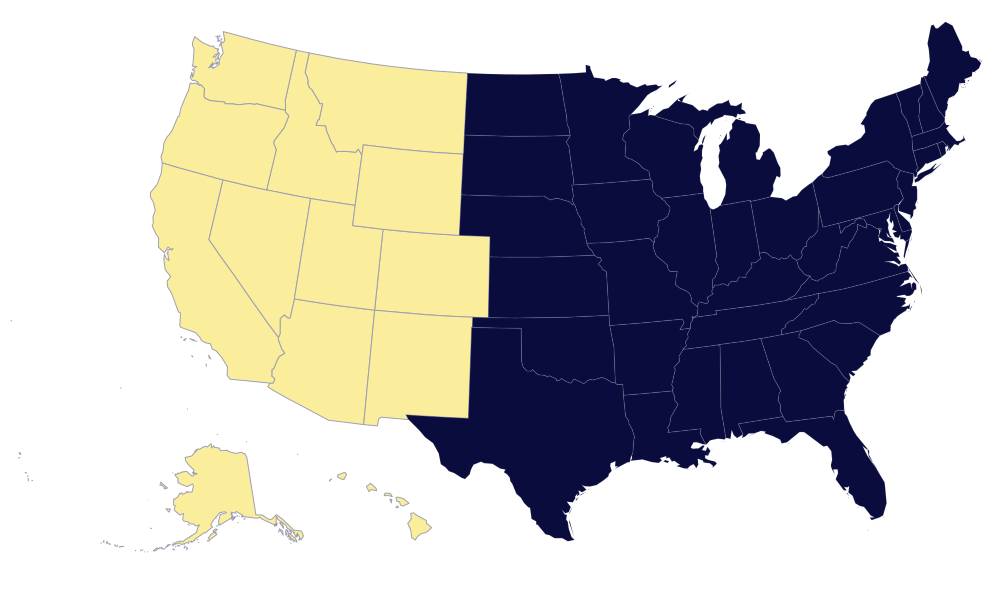
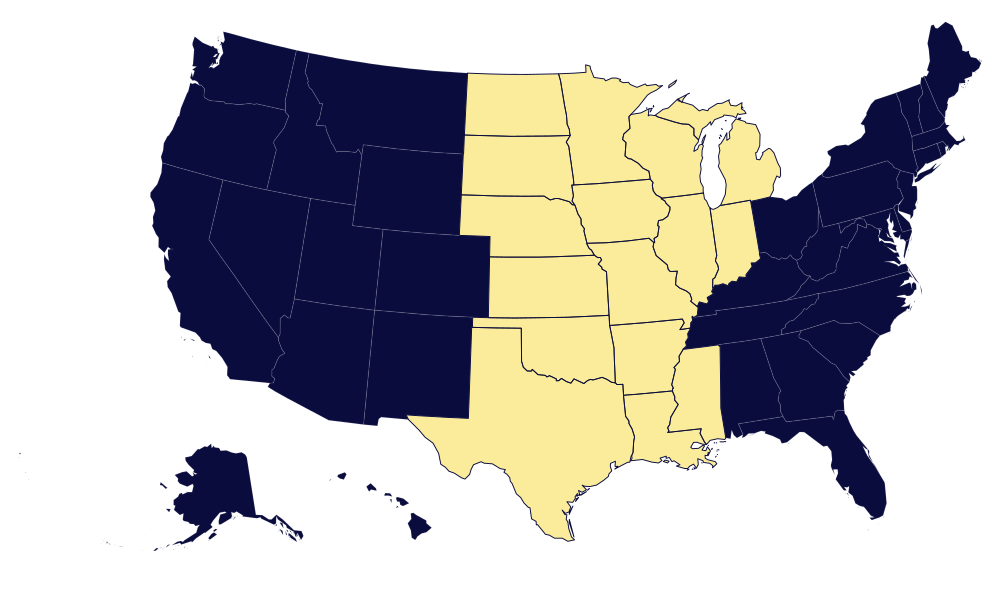
AVLS Nationwide Services
Central States
East Coast
*COMING SOON
West Coast



*COMING SOON
East Coast
Central States
West Coast
AVLS Nationwide Services
CONTACT US
When your event matters, trust your audio visual labor needs to AV Labor Source.
AVLS operate and has proven pool of AV technicians in major cities US Nationwide, such as Las Vegas, Los Angeles, Orlando, Dallas, San Antonio, Austin, Houston, Washington DC, Atlanta, New Orleans, Tennessee and more.
Please complete the form below and we will respond to you as soon as possible. We are available 24 hours a day to assist with your needs. We look forward to showing you what we can do toward the success of your next event.
AVLS operate and has proven pool of AV technicians in major cities US Nationwide, such as Las Vegas, Los Angeles, Orlando, Dallas, San Antonio, Austin, Houston, Washington DC, Atlanta, New Orleans, Tennessee and more.
Please complete the form below and we will respond to you as soon as possible. We are available 24 hours a day to assist with your needs. We look forward to showing you what we can do toward the success of your next event.
EVENT INFORMATION
